
Create and edit a project
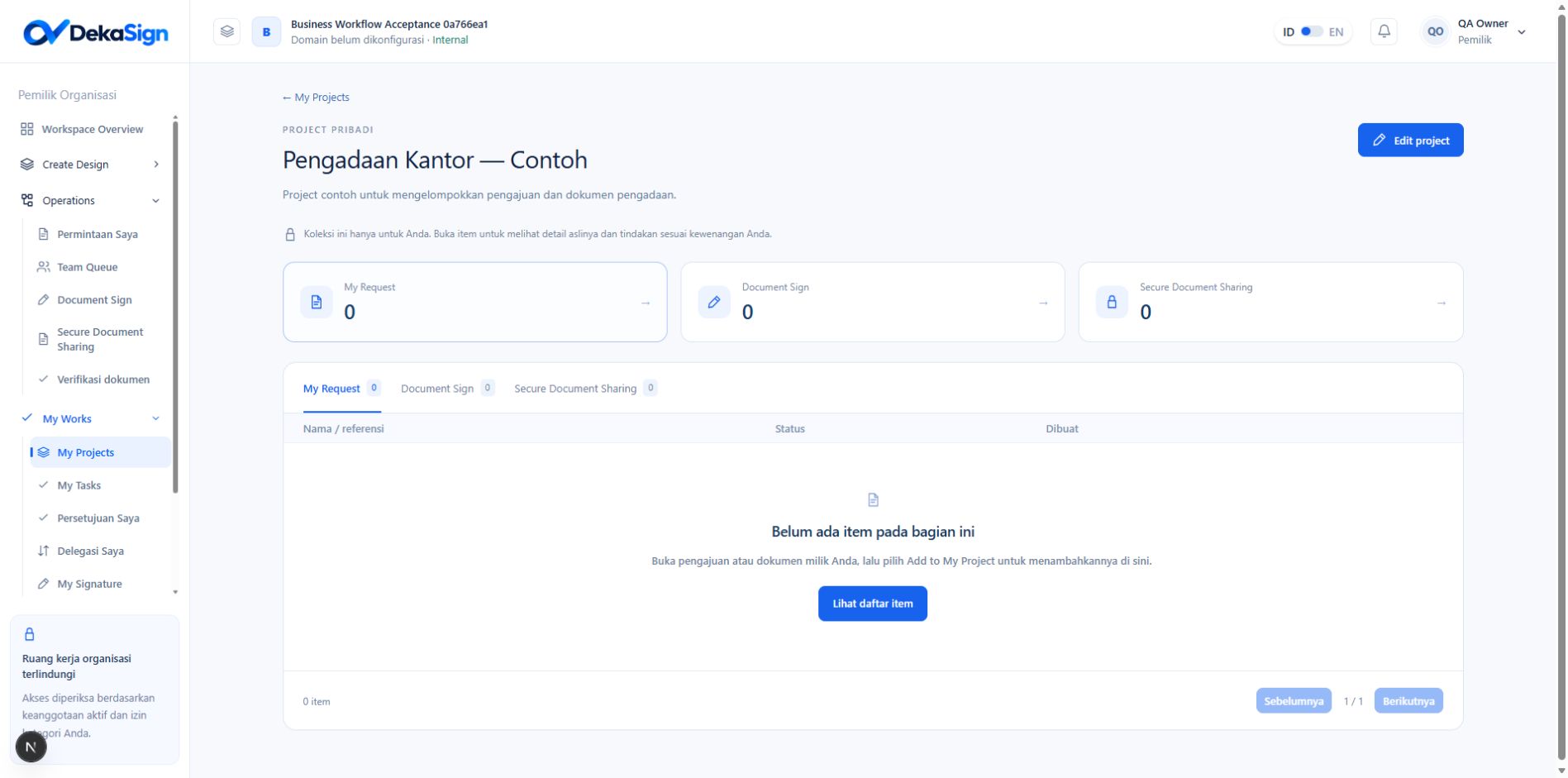
- Open My Projects and select Create project.
- Enter a recognizable project name and description.
- Save. Its detail page contains My Request, Document Sign, and Secure Document Sharing sections.
- Select Edit project to update its name or description.
Add an existing item
1
Open your request or document
Open a submitted request, a sent standalone Document Sign package, or a created/sent Secure Document Sharing session. Drafts cannot be added.
2
Select Add to My Project
Select Add to My Project. In the popup, choose Existing project to search and select a project, or New project to create one there.
3
Confirm the project
Select Add to project or Create & add. After success, the item’s My Project link opens that collection.
View items and status
Open a project and select My Request, Document Sign, or Secure Document Sharing. The list shows each item’s name/reference, status and creation time. Select its name or View details to open the original page and your permitted actions. Project status follows the original item. Grouping items does not complete approval, signing or operational work. Times follow the organization timezone.Ownership and access
- Eligible requests are your own non-Draft submissions.
- Document Sign uses standalone packages you own or hold through an authorized handover; documents signed inside a request remain accessible through that request.
- Secure Document Sharing follows current session ownership/custody.
- Owner and Admin roles do not automatically expose another user’s private projects or files.