
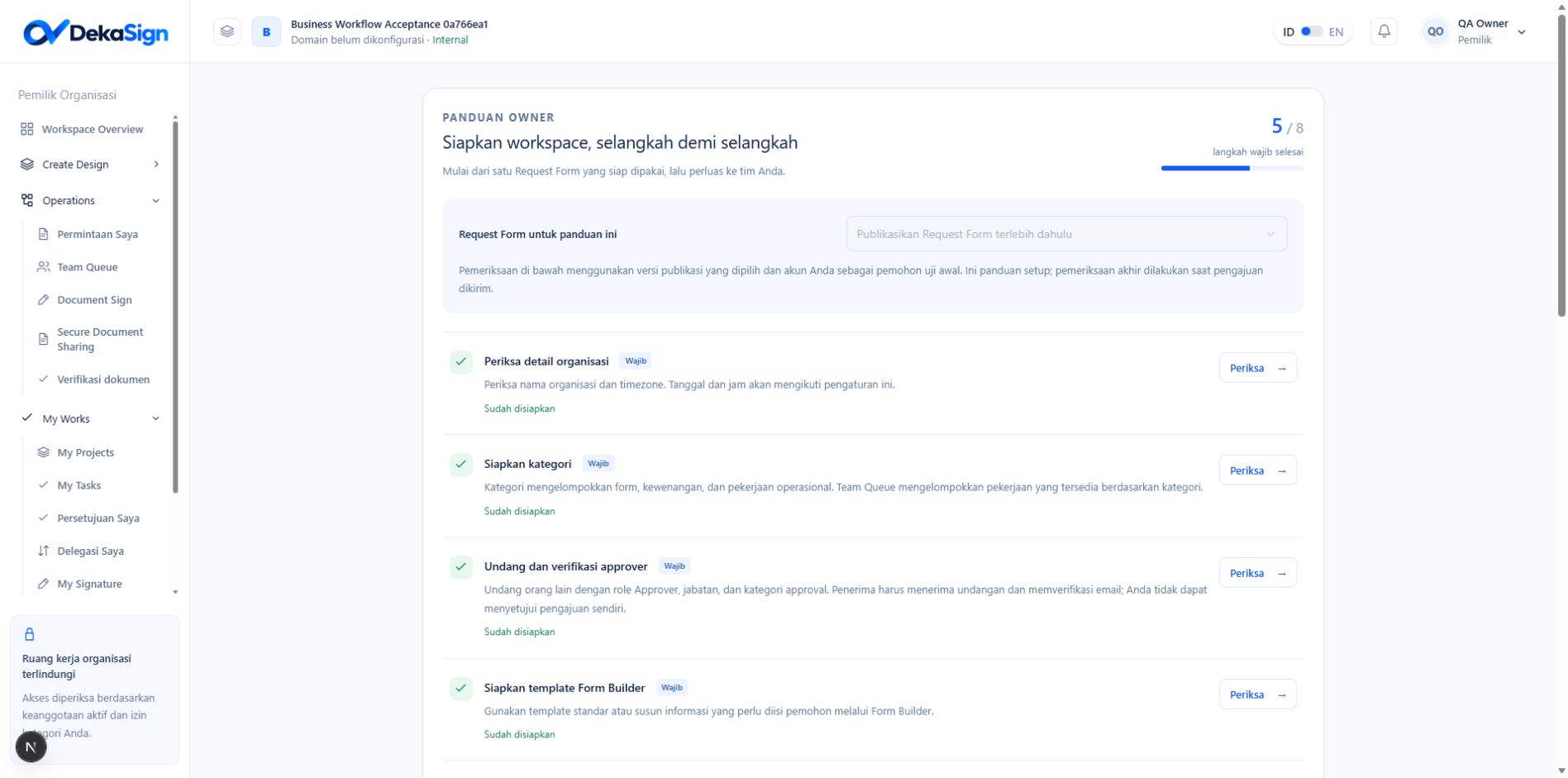
Before you begin
Complete account verification and onboarding. Check that you are in the correct organization workspace. Your 30-day Trial starts when the organization is created; check its status and capacity in Plans & billing.1
Complete Settings
Open Settings → Organization. Check the organization name, email domain, logo and timezone. The default is Asia/Jakarta (GMT+7); choose another timezone when needed. Organization dates and times follow this setting.
2
Prepare Categories
Open Create Design → Categories. Use existing categories or add the categories you need. Categories also group work in Team Queue.
3
Invite another approver
Open Settings → User management, select Invite member, and enter a new email, role and job title. Set the Direct Manager, an Access Profile or manual permissions, and the approval categories. The recipient supplies their name, phone number and password, then verifies their email to join.
4
Create a Form Builder
Open Create Design → Form Builder. Define fields, required values, list data, tables and attachments. Save the form your workflow will use.
5
Design and publish the workflow
Open Create Design → Workflow Engines, select the Form Builder, and design the approval route. Choose a specific approver or Requester’s Direct Manager. Run Validate and Run sandbox, then Publish.
6
Create a Request Form Template
Open Create Design → Request Form Templates. Enter a name and select the category and a published workflow. Prepare default documents when needed, then save and publish the template.
7
Map member permissions
In User management, give requesters category access and permission to use the form. Give approvers the appropriate role and approval permission for that category. For operational work, add the Operation role and managed categories. Access Profiles help reuse permission settings.
8
Submit the first request
Sign in as the requester, open Operations → Request Form, select a form, complete its data and documents, and review before Submit. Check My Approvals using the approver account. If the workflow includes an Operation Task, continue testing until that work is Completed.